New Time-Saving features in Benefits Reconciliation
July 2026 adds an optional Notes field to bulk adjustments, four traceability columns plus a Running Balance to the Plan Balance Report, and Margin Fees.
This update cuts the manual steps out of documenting, auditing, and verifying reconciliation adjustments.
We've added an optional Notes field to the Generate Mass Adjustment Template Report modal – a small change that makes documenting bulk write-offs, beginning-balance resets, and period adjustments significantly faster.
Alongside this change, the Plan Balance Report gains new traceability columns and a Running Balance, and the YTD Report can now display Margin Fees.
Mass Adjustment Template Updates
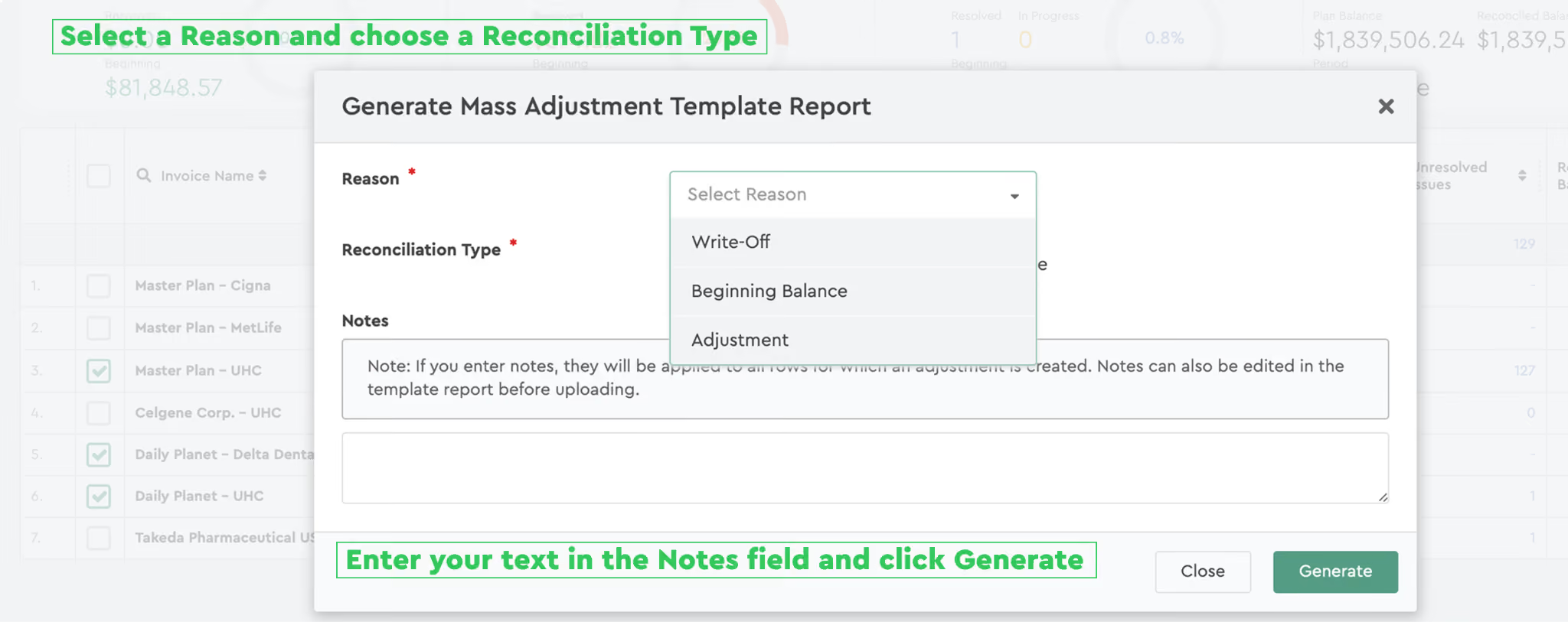
The Generate Mass Adjustment Template Report modal has been updated with a new Notes field, alongside the existing Reason and Reconciliation Type controls.
The Generate Mass Adjustment Template Report Modal
The modal contains three fields:
1. Reason (required)
The reason for the adjustment. Options: Write-Off, Beginning Balance, or Adjustment.
2. Reconciliation Type (required)
Controls both the loading logic and how amounts are populated in the generated report. Three options:
Default — amounts are entered manually. If an adjustment already exists for a row, the file displays the existing amount, which can be changed.
Variance — amounts are filled in automatically to bring the variance to zero for the selected month. New adjustments are created only for non-zero amounts.
Plan Balance — amounts are filled in automatically to bring the balance to zero across a date range. Selecting this option displays additional Plan Balance Start Date and Plan Balance End Date fields for setting the range in months.
3. Notes (new, optional)
A free-text field with a tooltip. Text entered here is applied immediately to all rows for which an adjustment is created.
How Notes Work
The Notes value is entered once during generation and flows through the entire mass-adjustment workflow.
In the modal: the text entered in the Notes field is applied immediately to every row where an adjustment is created.
In the generated report: notes appear in a separate pre-filled Notes column. Individual notes can be edited on a row-by-row basis in the report template before uploading it back.
On upload, notes are saved with each adjustment:
For Default, notes are saved both on creation and on update.
For Variance and Plan Balance, notes are saved on creation only.
Empty notes are ignored.
In audit logs: the generation log stores the full note text; the upload log marks the event as "Notes: Yes."
This attaches an auditable, per-row comment to every bulk adjustment – useful for documenting the reason behind mass write-offs, beginning-balance resets, or period adjustments without editing each employee record individually.
How to Add Notes to a Mass Adjustment
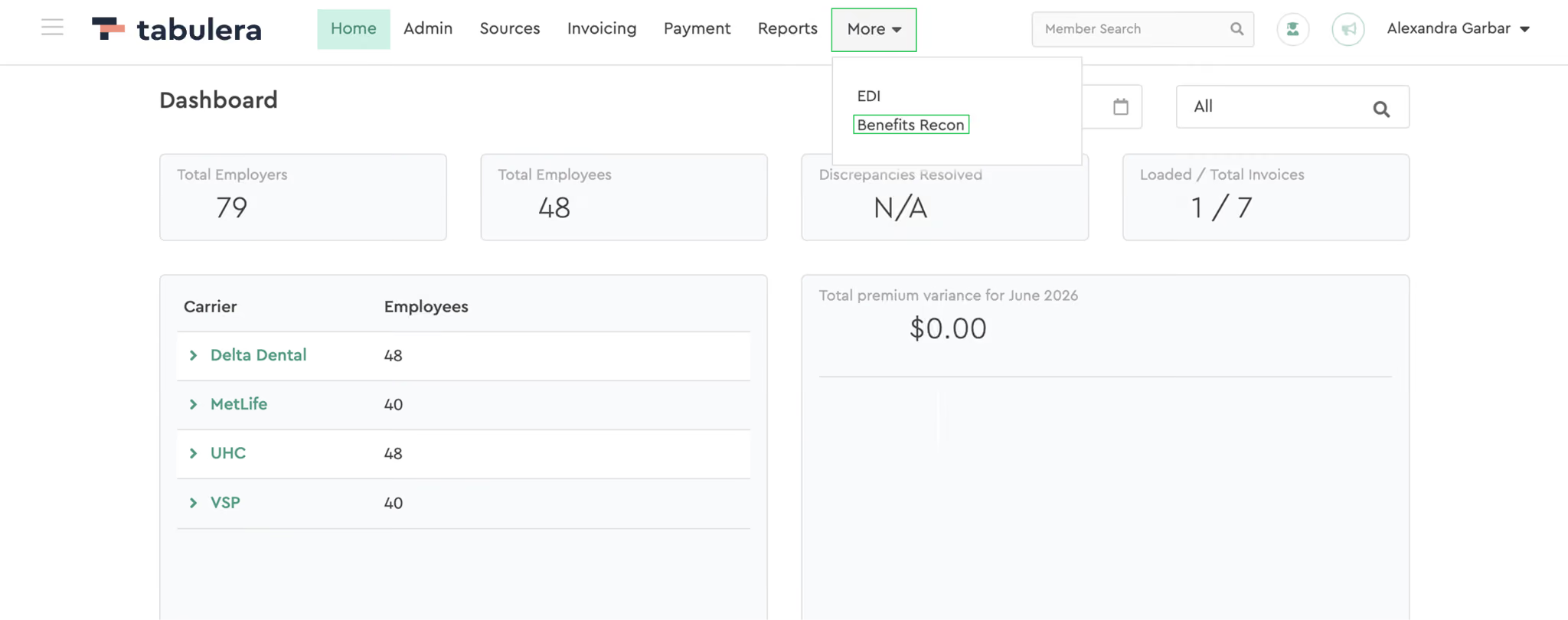
From the Home dashboard, open More → Benefits Recon to enter the Payroll Reconciliation view.
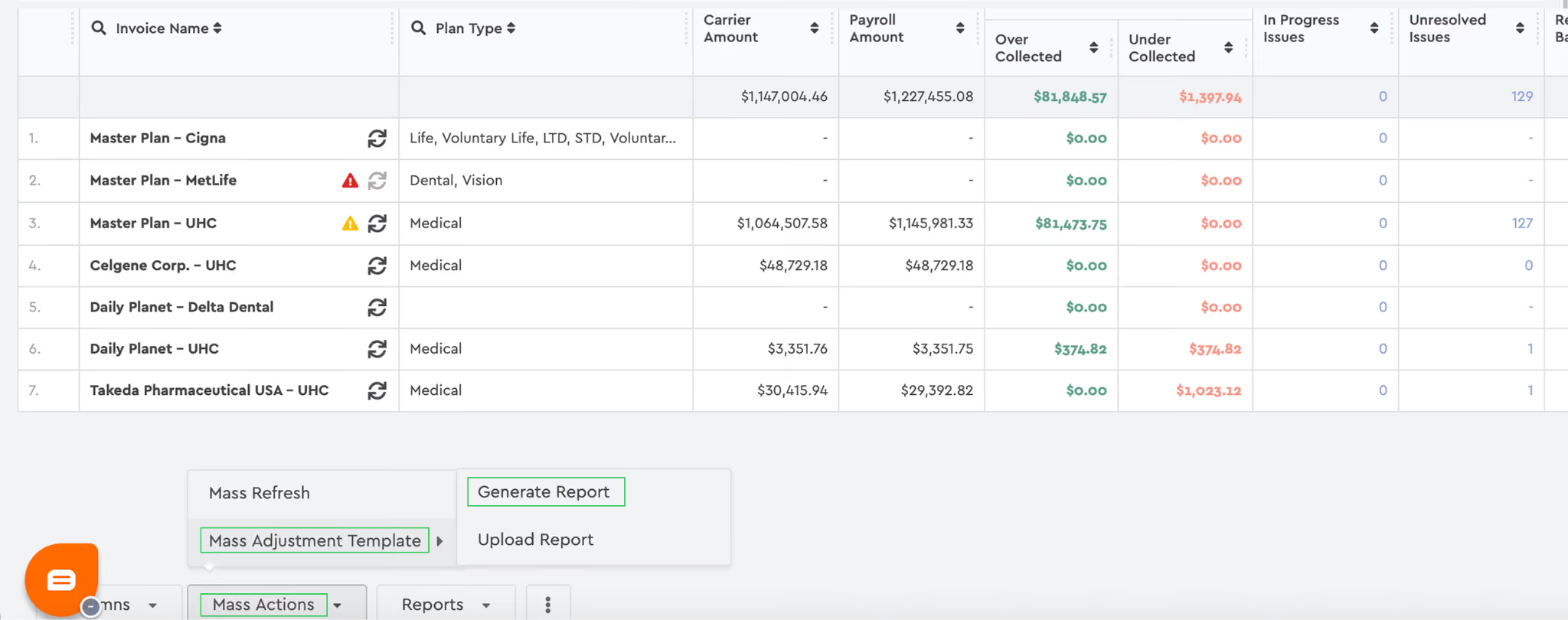
Click Mass Actions in the bottom toolbar, then Mass Adjustment Template → Generate Report.
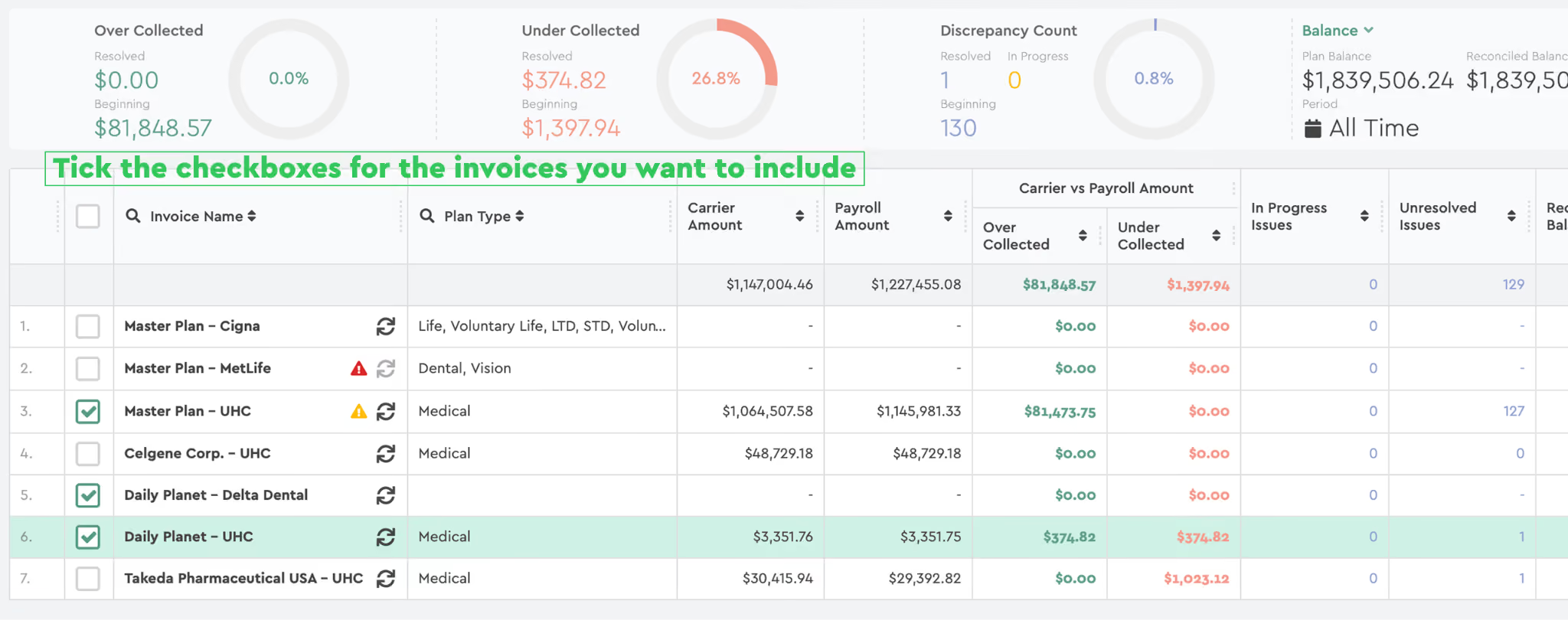
Tick the checkboxes for the invoices you want to include, then click Generate in the bottom-left toolbar.
In the Generate Mass Adjustment Template Report modal, select a Reason, choose a Reconciliation Type, and enter your text in the Notes field.
Click Generate. The report downloads as a CSV file with the Notes column pre-filled for every row where an adjustment was created.
New Columns in the Plan Balance Report
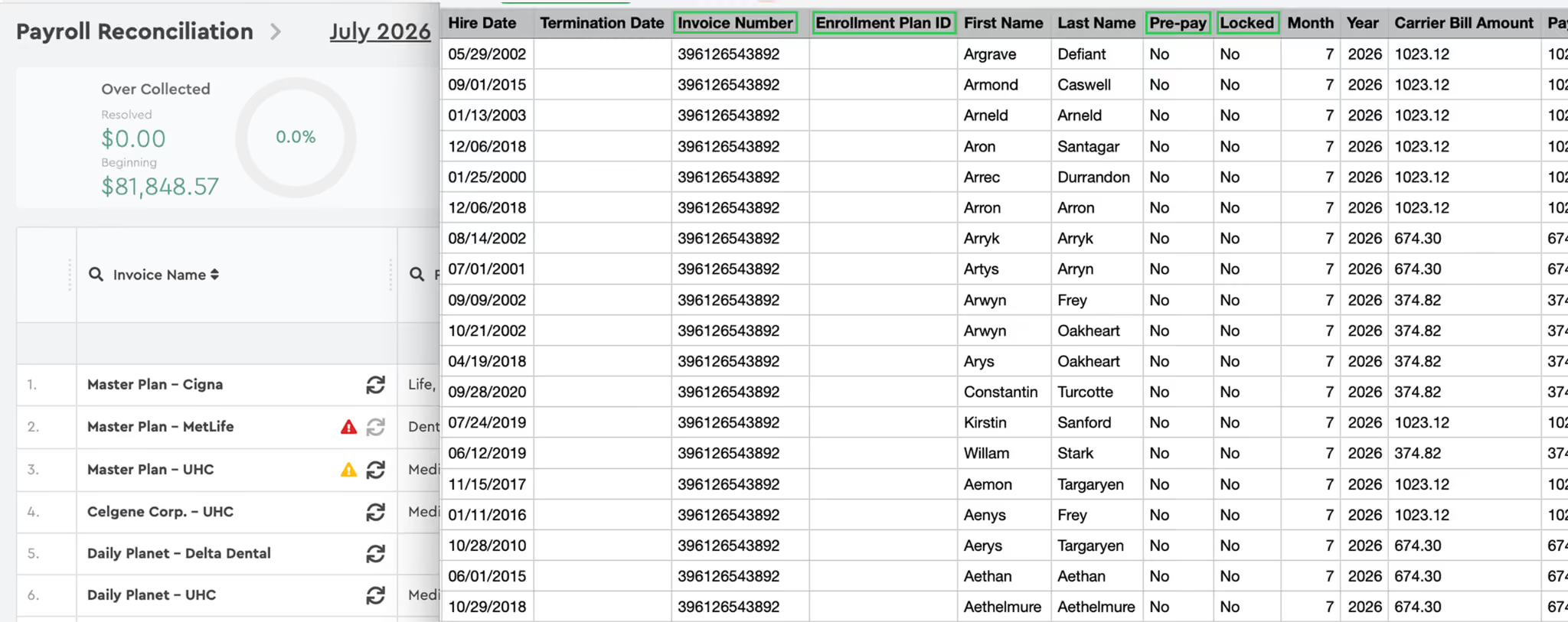
The Plan Balance Report has been expanded with four new columns for improved audit traceability.
Invoice Number — links each row to its source carrier invoice (Invoice ID).
Enrollment Plan ID — identifies the specific plan enrollment for the employee.
Pre-pay (Yes/No) — flags whether the carrier bills in advance of the coverage period.
Locked (Yes/No) — indicates whether the reconciliation period has been locked.
Together, these fields let finance and audit teams cross-reference each row to its source invoice, plan enrollment, billing cadence, and lock state without opening a second report.
New Running Balance Column in the Plan Balance Report
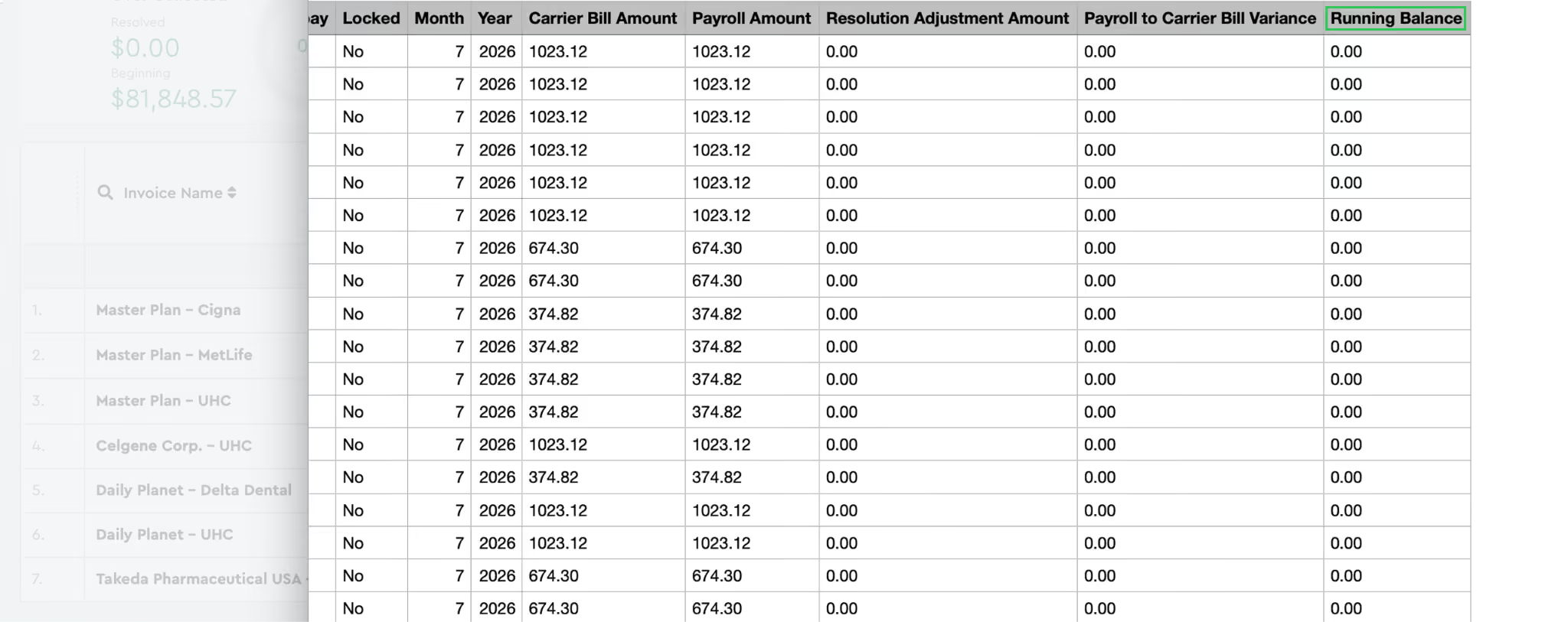
The Plan Balance Report now includes a Running Balance column – a cumulative balance calculated across months.
Each row shows the running total of the current month's balance plus all preceding months in the report period.
Example: the first month displays that month's balance alone; the second month shows the sum of months one and two; the third shows the sum of the first three; and so on.
Available in both Member Detail and By Company modes.
The column only appears when the report is generated with the Monthly Detail option enabled.
This gives finance and audit teams a rolling view of how each plan balance evolves across the reporting period without manually summing month-by-month totals.
Margin Fees in the YTD Report
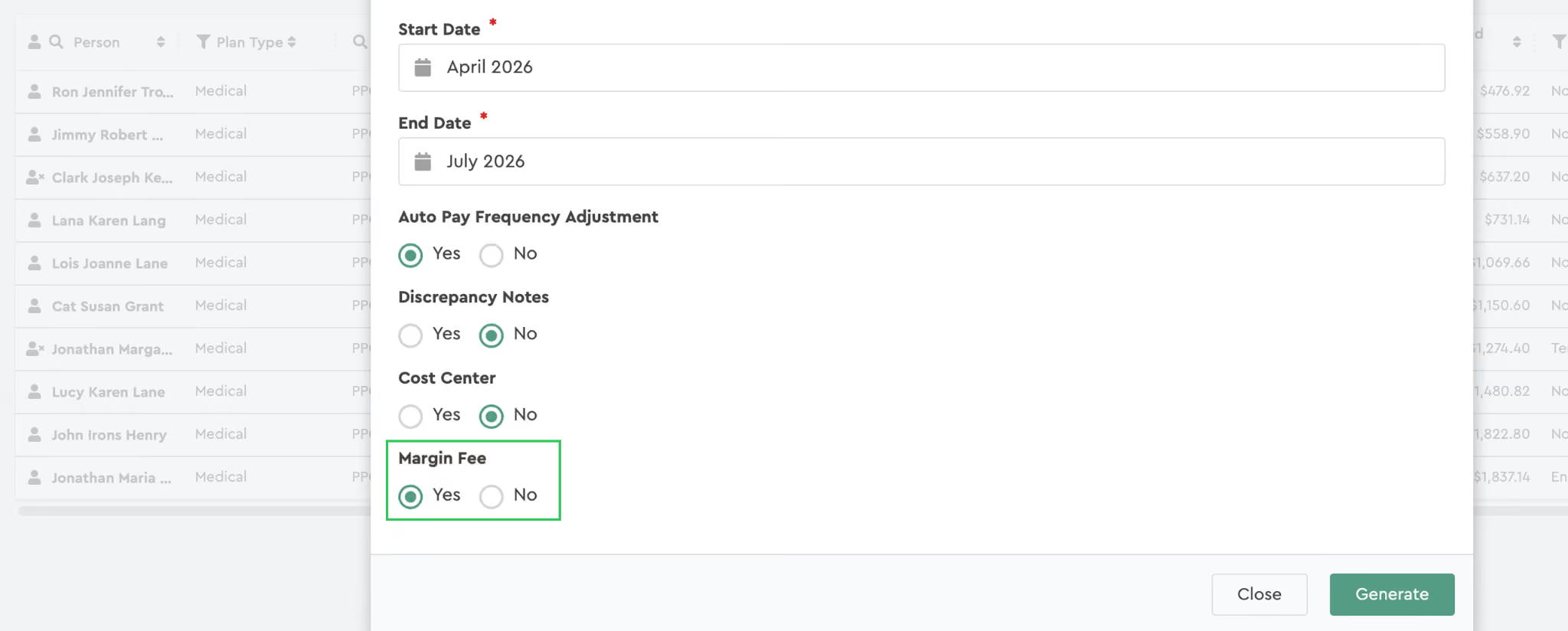
The Benefits Reconciliation YTD Report can now display Margin Fee columns.
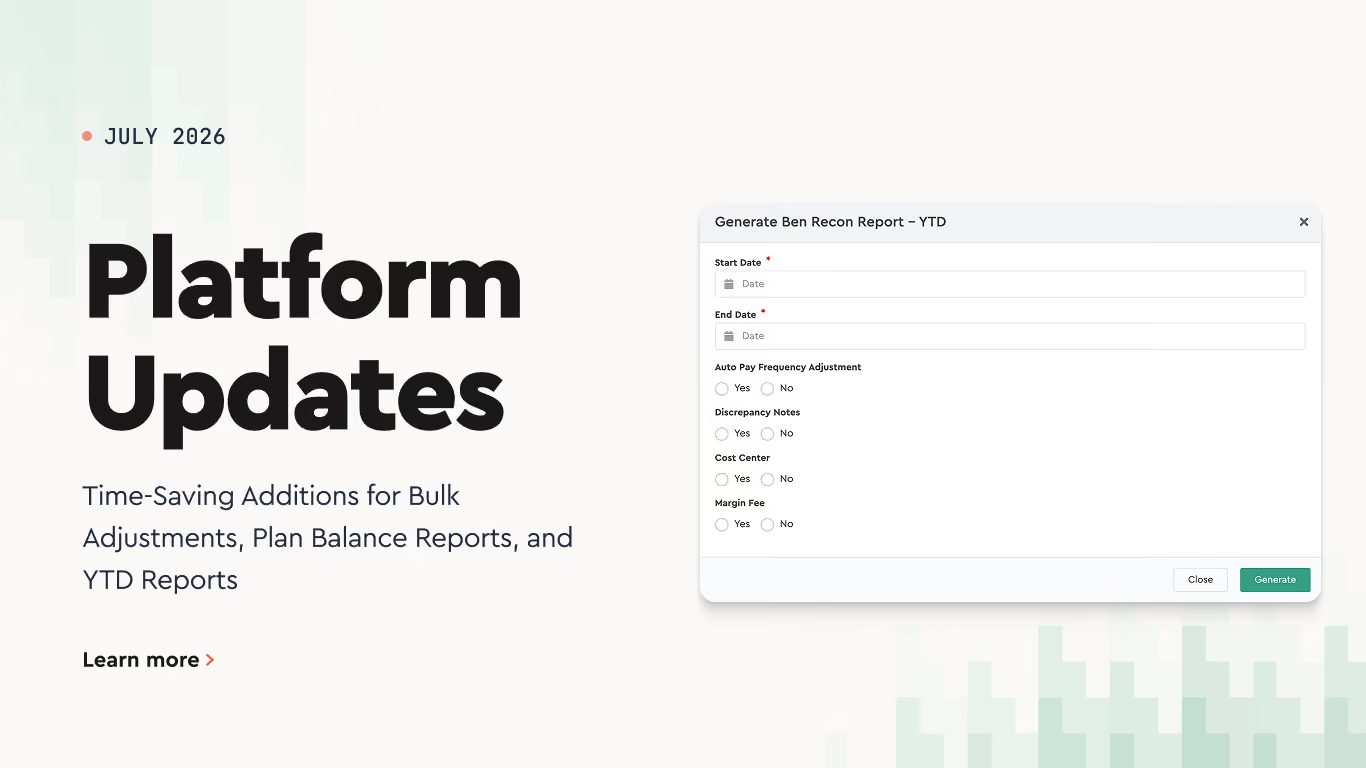
A new Margin Fee toggle appears in the Generate Ben Recon Report – YTD dialog.
Set Margin Fee to Yes to include the Payroll Margin Fee and Carrier Bill Margin Fee columns in the generated report.
The columns show margin fees applied on both the payroll and carrier bill sides for each reconciliation period.
This lets brokers and PEOs verify Margin Fee revenue across the year – including any variable rate changes configured across periods – without opening the reconciliation view.
What Is Benefits Administration? Complete Guide for HR Teams
Learn what is benefits administration, how it works, examples, HR responsibilities, benefits administration challenges and how software can simplify the process.
Benefits Open Enrollment: Employer Guide and Checklist
A complete open enrollment guide for employers: when the open enrollment period runs, key dates and deadlines, a step-by-step checklist, and tips that work.