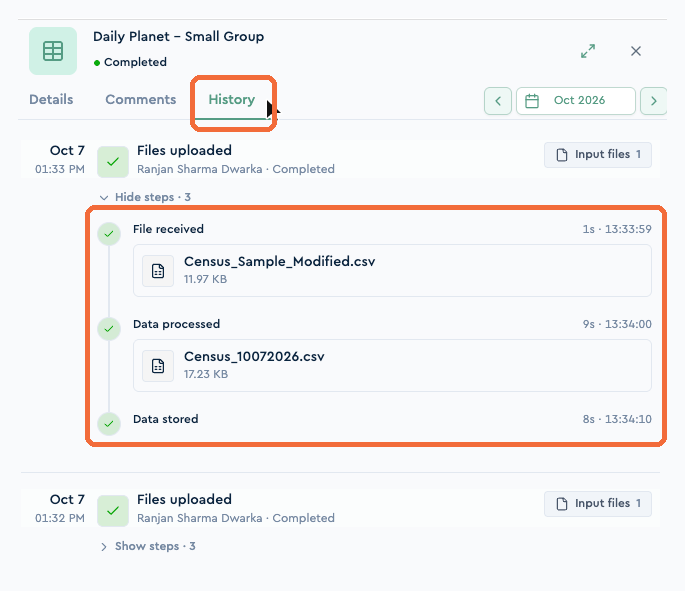
Full upload history: Every file you've uploaded is kept, and the History tab shows each processing step: file received, data processed, data stored.
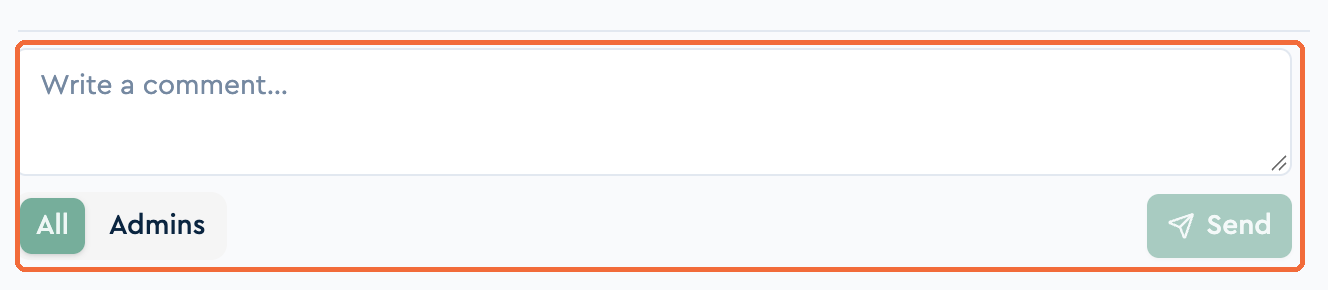
Comments: Your team can leave comments on any line item, so questions about a file stay next to the file.
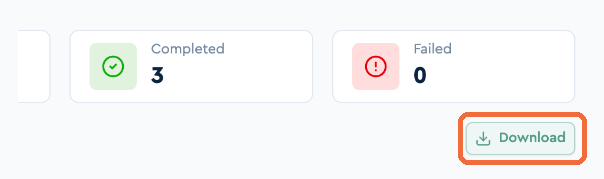
Batch download: Download all data for the selected period with one click of the Download button.
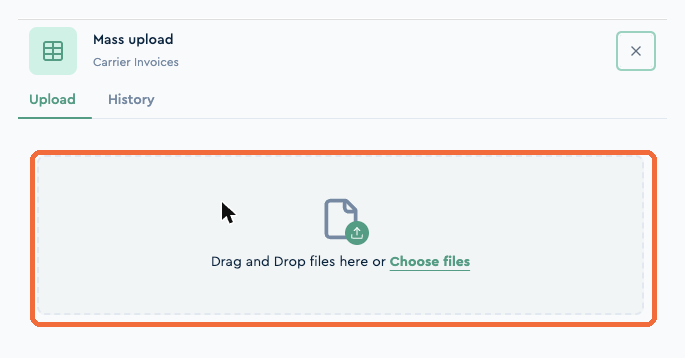
Mass upload for carrier invoices: Drop all of the month's bills at once and they're matched to the right invoice automatically.
Add a new carrier invoice yourself: Request a new invoice directly from the Carrier Invoices page, and it will appear in the system the following month.
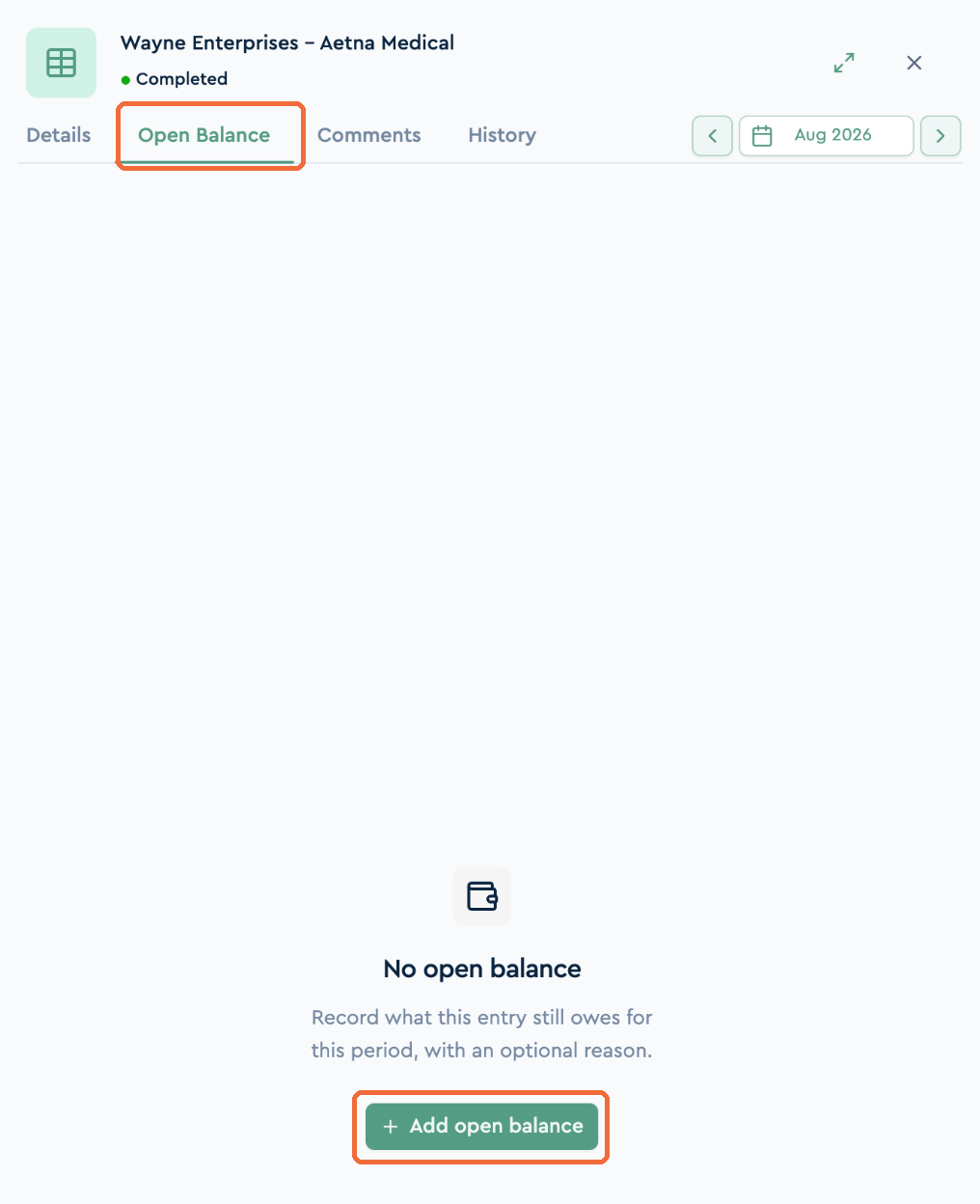
Open Balance: Record an overpayment on a carrier invoice, and the credit is applied to the next consolidated bill and payment.
Uploading Enrollment, COBRA Enrollment, or Payroll
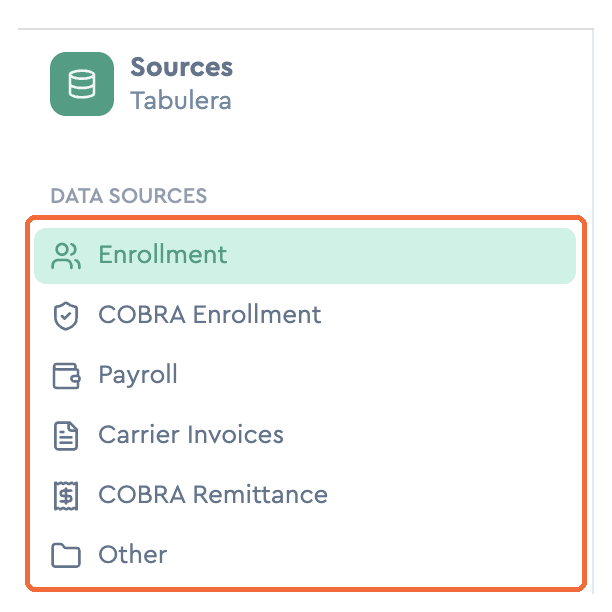
1. Select the data source in the left menu.
2. Use the date picker to choose the period you're uploading for.
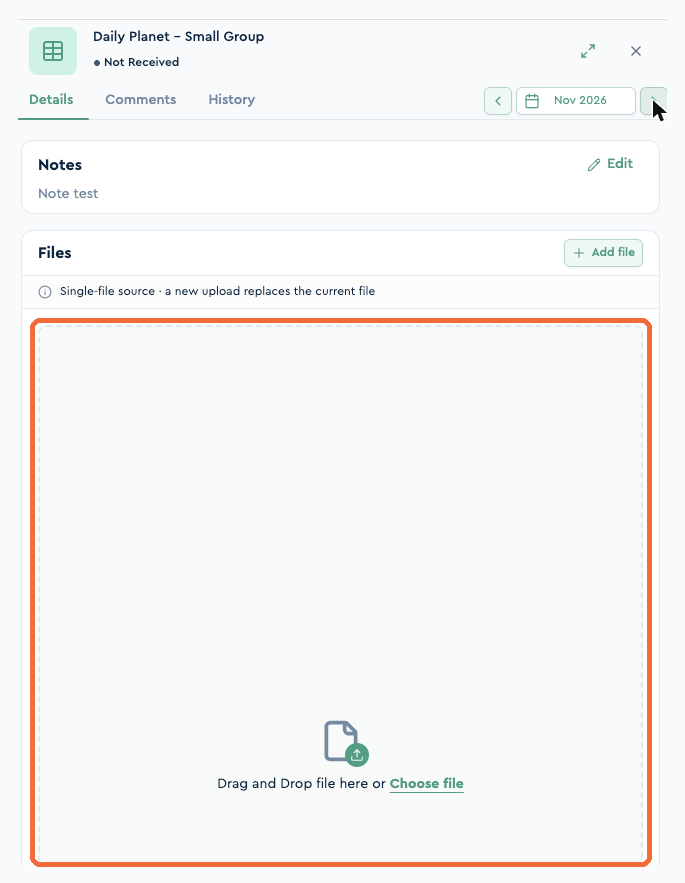
3. Click the line item you're uploading, and a panel opens on the right.
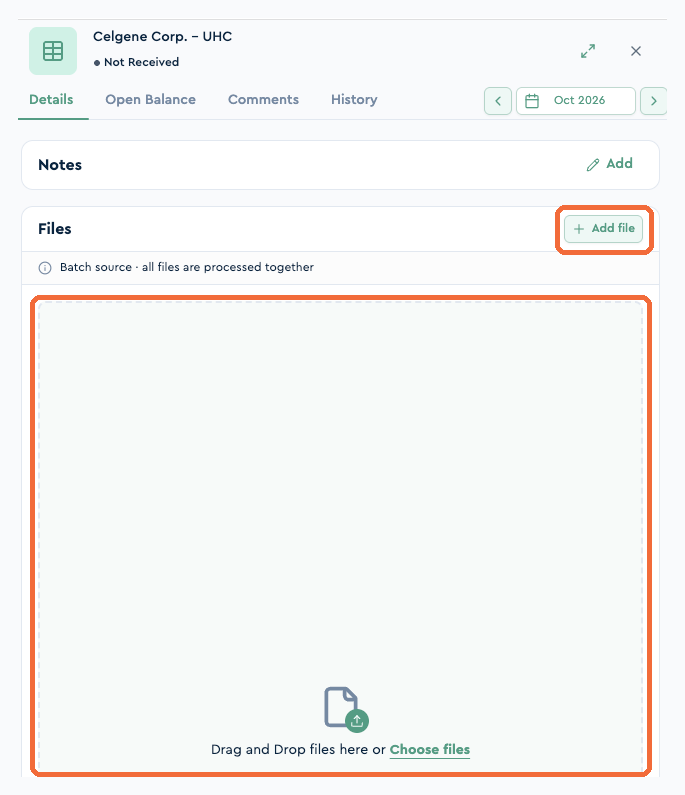
4. Drag and drop your files, or choose them from your computer. That's it.
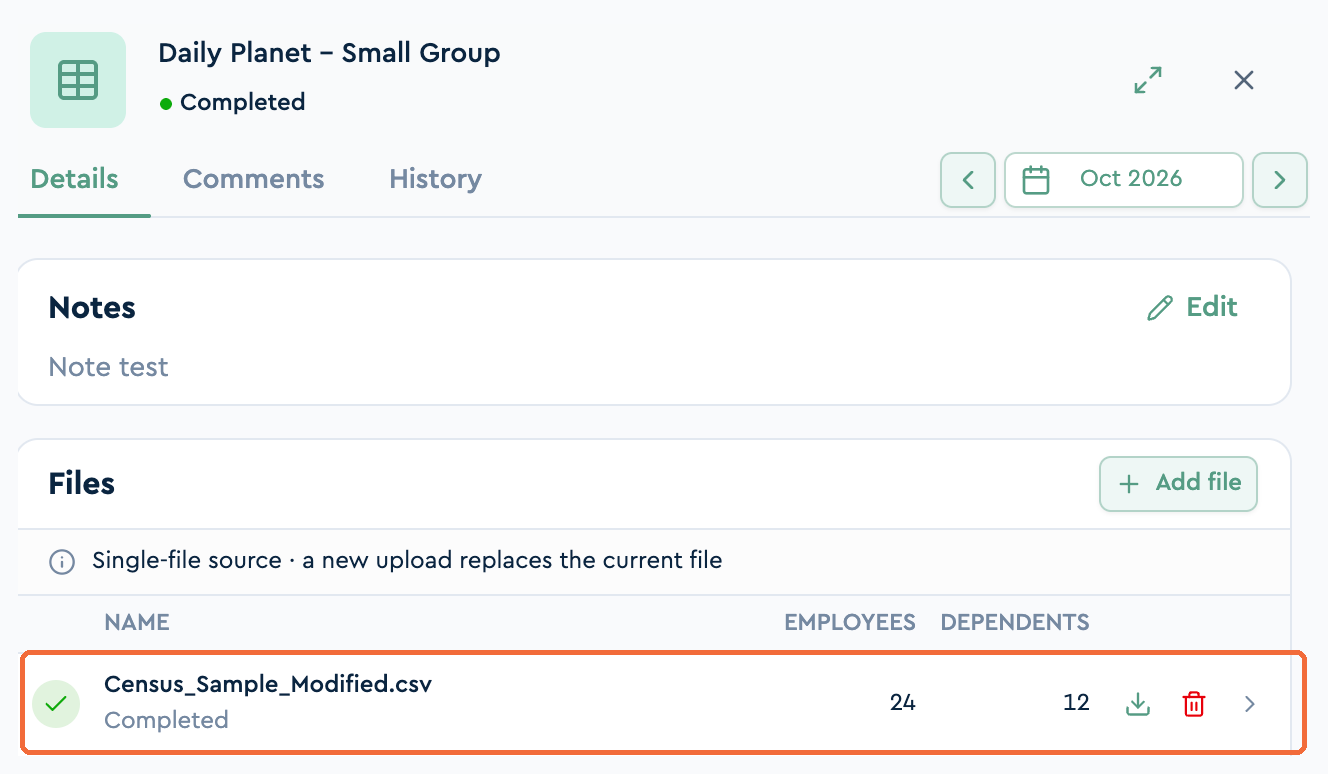
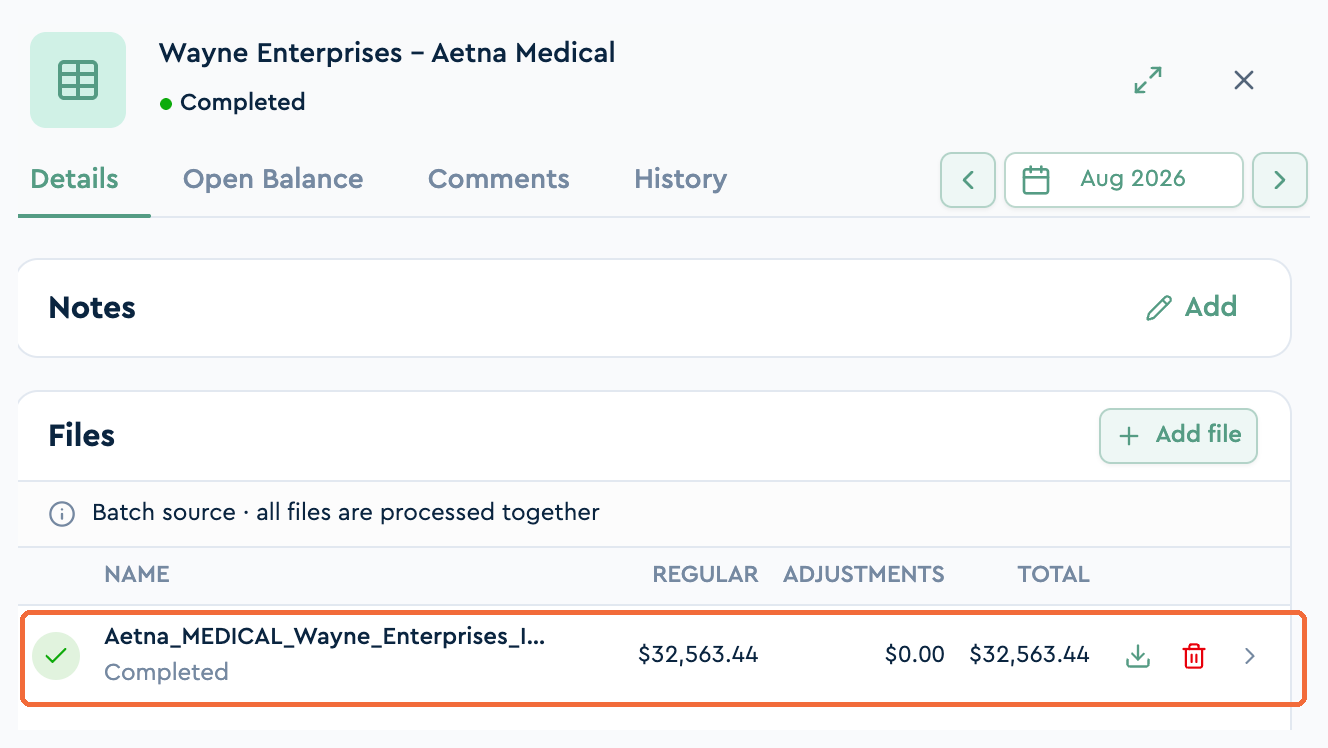
Once processing finishes, the panel shows the file with its employee and dependent counts, and the status changes to Completed. Individual files can still be downloaded or removed from this panel.
Comments
Open the Comments tab on any line item to start a thread with your team. Choose whether the comment goes to everyone or to admins only, then click Send.
History
The History tab lists every upload for the line item, with the steps each file went through.
Batch download
To download everything uploaded for the selected period in one go, click Download above the list.
Uploading Carrier Invoices
Select the period first, then:
· List bills: click the invoice you're uploading for, click + Add file in the right-hand panel, and select your invoice file.
Once processed, the invoice shows its regular, adjustment, and total amounts.
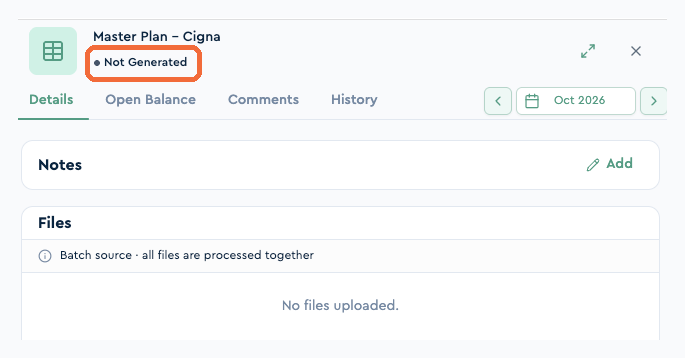
· Self-bills: make sure that month's enrollment is uploaded first. Then open the invoice in the slide-out panel and click Generate in the bottom right corner.
· Many invoices at once: click Mass upload and drop all of the month's bills together. Each file is recognized and assigned to the correct invoice in the system, so there's no need to open them one by one.
Adding a new carrier invoice
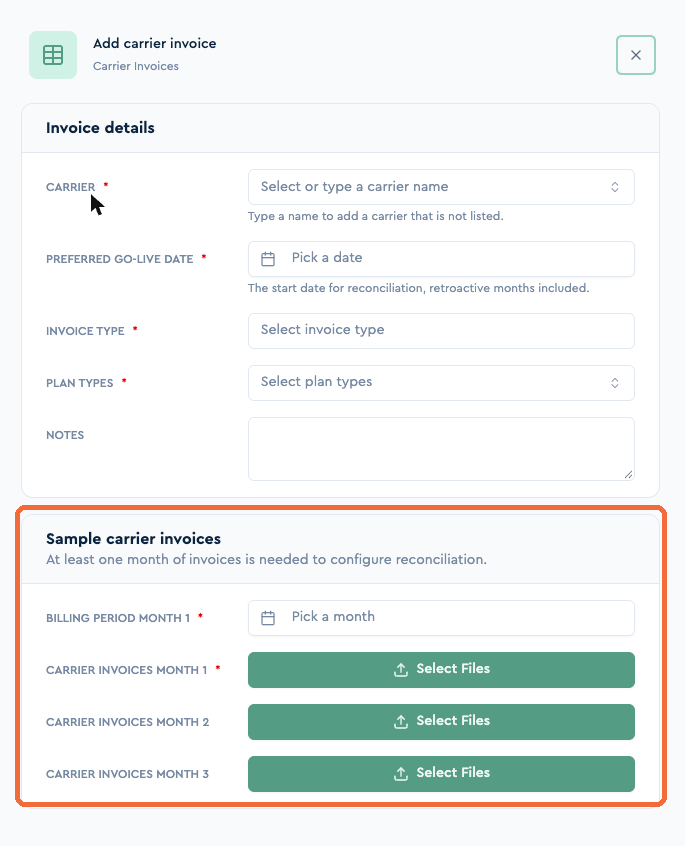
If a carrier's invoice isn't in the system yet, click + Add carrier invoice. Fill in the carrier, preferred go-live date, invoice type, and plan types, then attach at least one month of sample invoices so we can set up and verify the new invoice. Once submitted, the invoice is ready for you to upload against starting the following month.
Open Balance
The Open Balance tab lets you record an overpayment on a carrier invoice so the credit carries into the Consolidated Invoicing and Payments modules. The credit is applied to the following period, so what you pay the carrier reflects the true balance rather than just the current invoice.
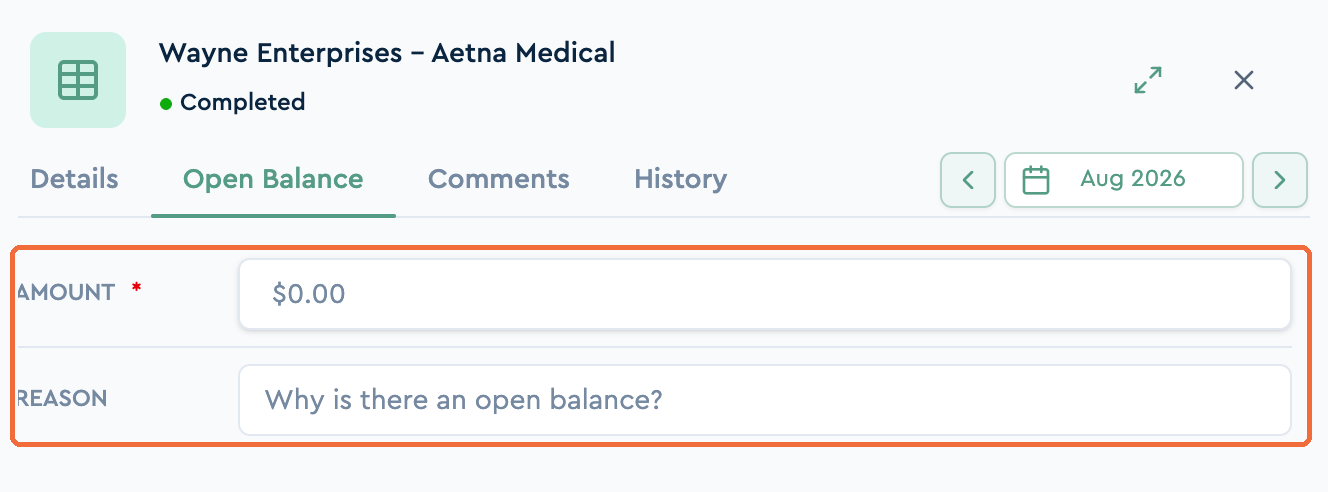
For example, if you overpaid a carrier by $300 last month, record a $300 open balance on that invoice. The next consolidated bill and payment for that carrier will be reduced by $300, with the reason you entered kept alongside the adjustment for your records.
To record one, open the invoice, go to the Open Balance tab, click + Add open balance, enter the amount and the reason, and save.
What Is Benefits Administration? Complete Guide for HR Teams
Learn what is benefits administration, how it works, examples, HR responsibilities, benefits administration challenges and how software can simplify the process.
Benefits Open Enrollment: Employer Guide and Checklist
A complete open enrollment guide for employers: when the open enrollment period runs, key dates and deadlines, a step-by-step checklist, and tips that work.