Workday delivers reports to external SFTP servers through an outbound EIB, not through Schedule a Report.
The custom report must be enabled as a web service before an EIB can read it.
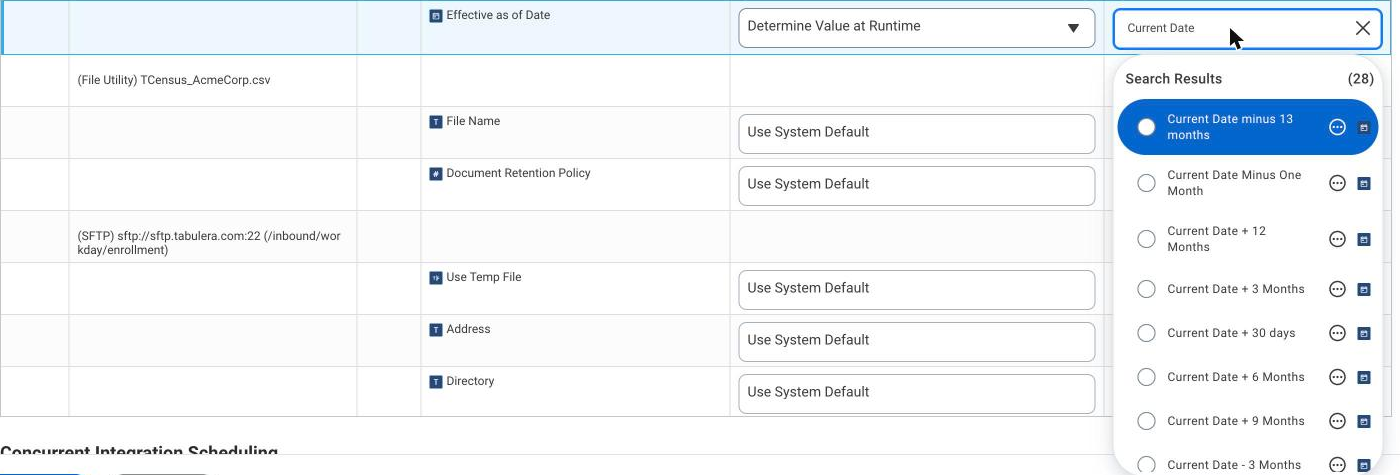
Set the effective-date prompt to Determine Value at Runtime so every scheduled run picks up a fresh snapshot.
Delivery frequency is a client decision and can be changed later with Change Schedule, without rebuilding the EIB.
Before You Start
[[Warning]]The user setting up the EIB needs Modify access to the Integration Build and Custom Report Creation domains, View and Modify on Integration Event, and View on Integration Process, in addition to the report data domains listed in the report set-up article.[[/Warning]]
Tabulera Support issues one set of SFTP credentials per client. Every value below is an illustrative placeholder; use the credentials from your Tabulera welcome email.
Setting
Example value (replace with yours)
SFTP address
sftp://sftp.tabulera.com:22
Enrollment directory
/inbound/workday/enrollment
Payroll directory
/inbound/workday/payroll
User ID
acme_workday
Authentication
User name and password (SSH key on request)
File names
TCensus_AcmeCorp.csv, TPayroll_AcmeCorp.csv
Prerequisite: Enable the Report as a Web Service
An EIB can only read a custom report that is exposed as a web service. Do this once for TCensus and once for TPayroll.
Search for the Edit Custom Report task and select the report.
Open the Advanced tab and scroll to Web Services Options.
Tick Enable As Web Service. Leave the API version and namespace Workday fills in.
Click OK.
[[Note]]If the report does not appear later in the EIB’s Custom Report prompt, this box was not ticked.[[/Note]]
Create the Outbound EIB
Step 1: Start the Create EIB Task
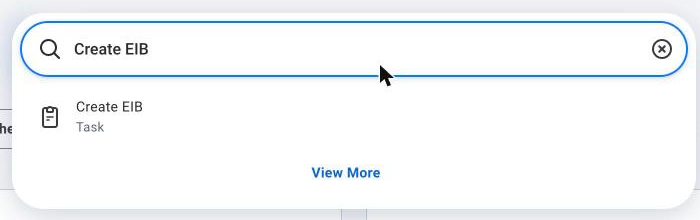
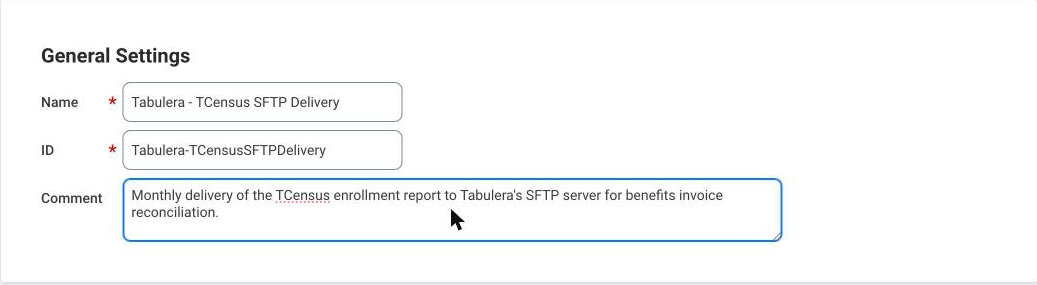
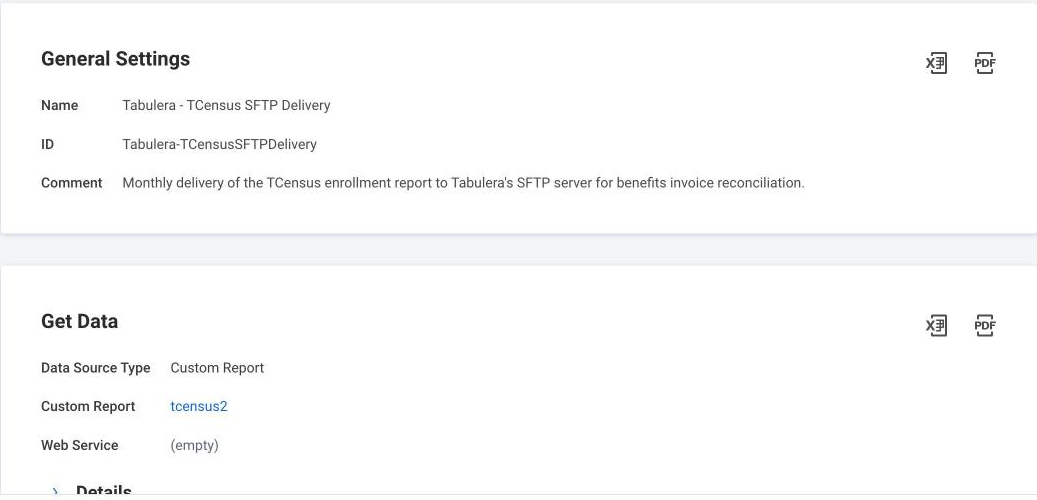
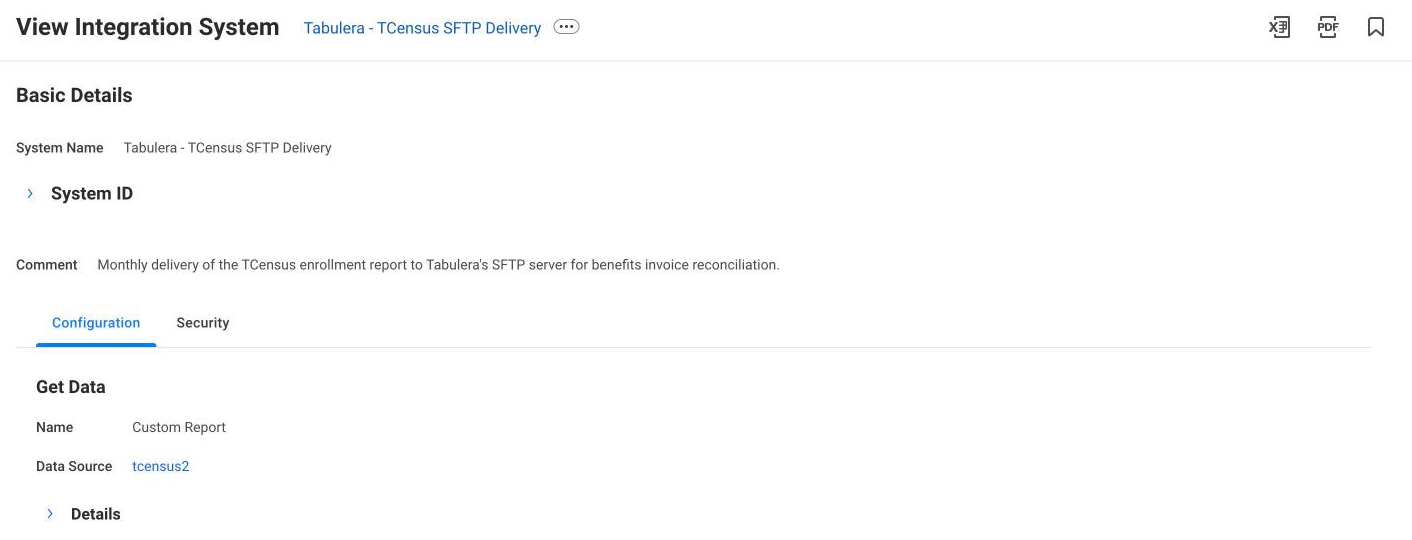
Search for the Create EIB task, give it a descriptive name such as Tabulera - TCensus SFTP Delivery, select Outbound and click OK. Workday opens a five-step wizard: General Settings, Get Data, Transform, Deliver, Review and Submit.
Step 2: General Settings
Name and ID are pre-filled. Add a short comment describing the purpose of the integration and click Next.
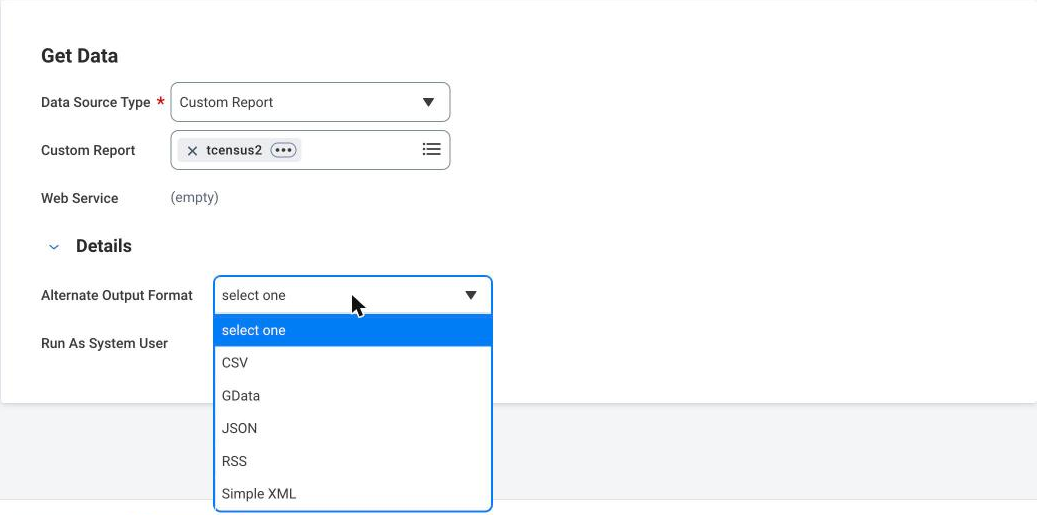
Step 3: Get Data
Field
Value
Data Source Type
Custom Report
Custom Report
TCensus (only web-service-enabled reports are listed)
Details > Alternate Output Format
CSV
Details > Run As System User
Leave blank unless your security team requires an integration system user
Expand Details to reach Alternate Output Format. CSV is the format Tabulera’s Sources loader expects for automated delivery.
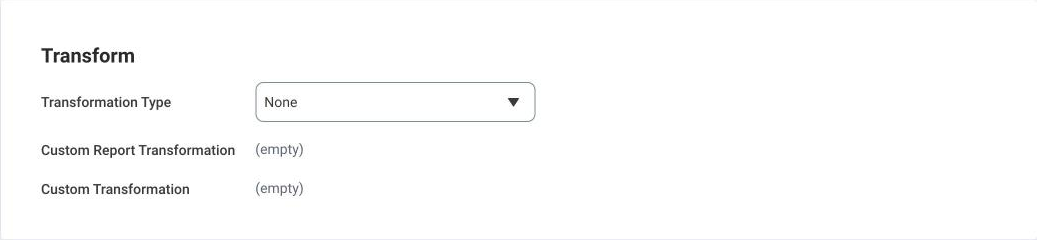
Step 4: Transform
Leave Transformation Type as None. The CSV chosen in Step 3 is already the final format.
Step 5: Deliver
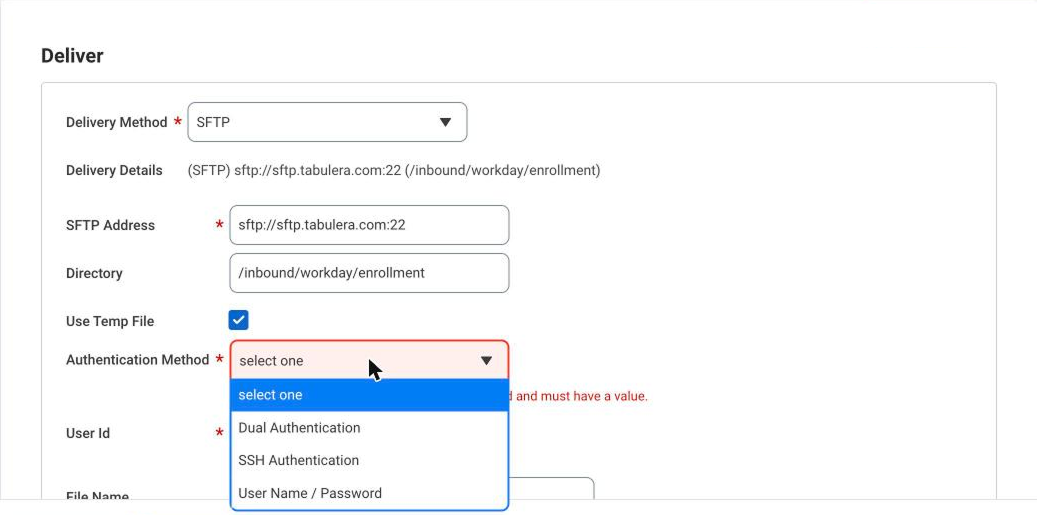
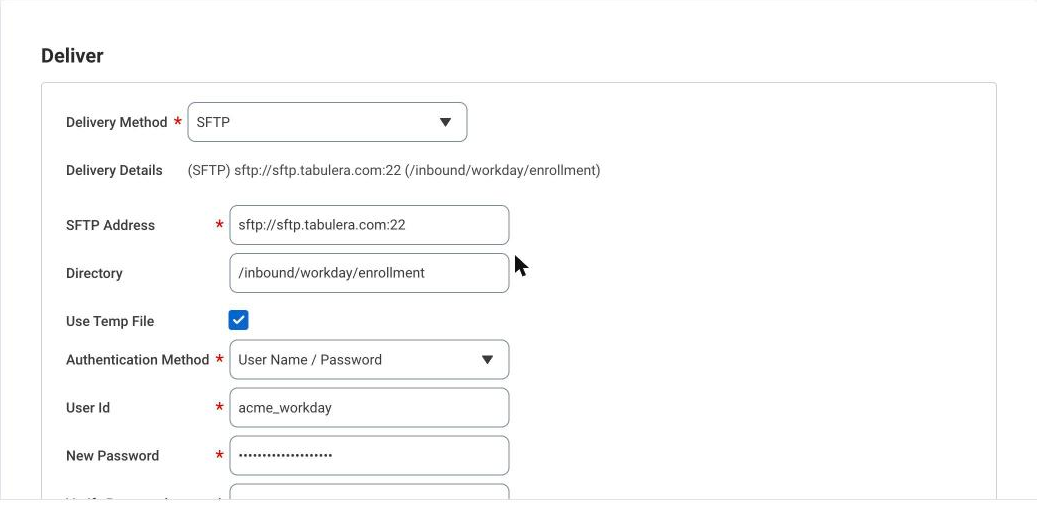
Change Delivery Method from the default Workday Attachment to SFTP and complete the transport fields with the credentials Tabulera provided.
Field
Value
Delivery Method
SFTP
SFTP Address
sftp://sftp.tabulera.com:22
Directory
/inbound/workday/enrollment (payroll directory for TPayroll)
Use Temp File
Ticked. Workday uploads to a temporary name and renames on completion, so Tabulera never picks up a half-written file
Authentication Method
User Name / Password
User Id
acme_workday
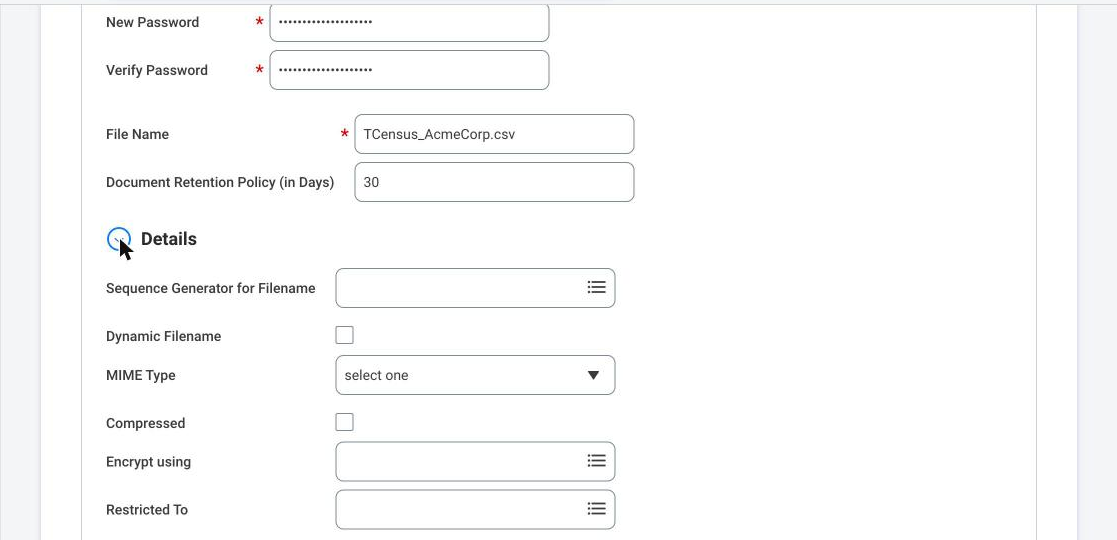
New Password / Verify Password
Password from your Tabulera welcome email
File Name
TCensus_AcmeCorp.csv
Document Retention Policy (in Days)
30
Two optional settings under Details are worth knowing: Sequence Generator for Filename adds a date or counter so earlier files are never overwritten on the server, and Encrypt using applies a PGP key if your policy requires encryption at rest. Ask Tabulera Support for the key.
Step 6: Review and Submit
Check the summary and click OK. Workday creates the integration system and opens its View Integration System page.
Schedule the Integration
Step 7: Open Launch / Schedule
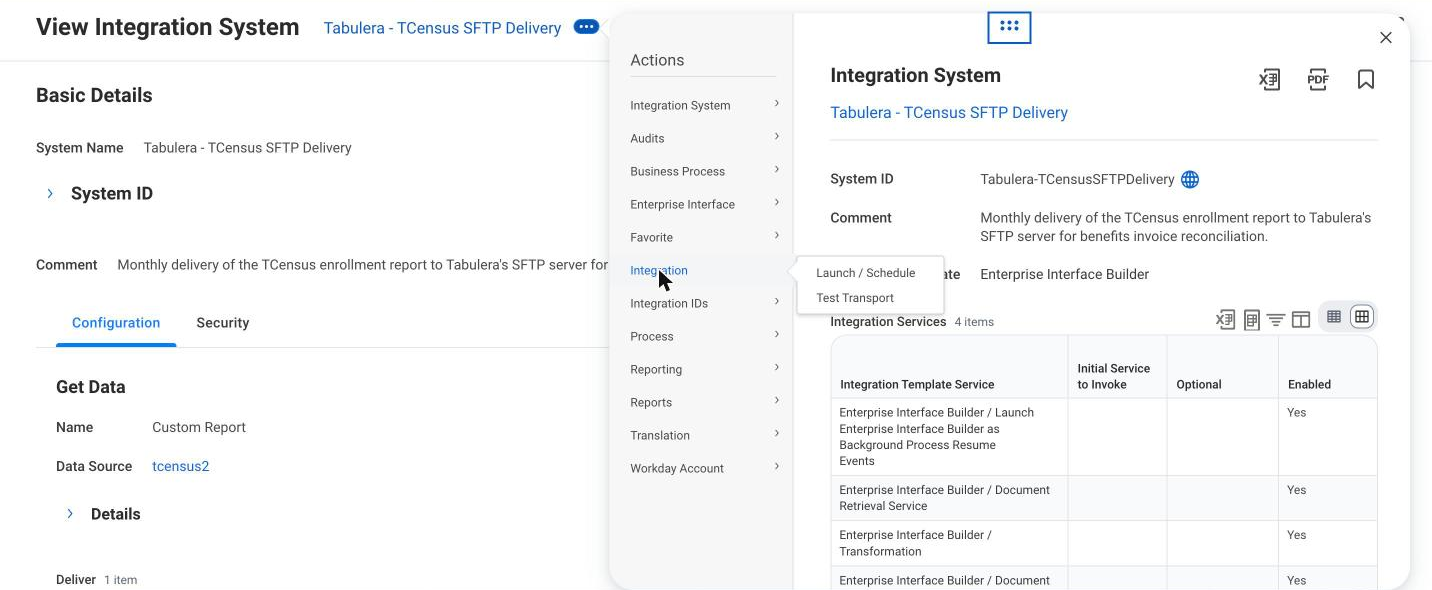
From the integration system’s related actions menu (the ... next to its name) choose Integration > Launch / Schedule. Set Run Frequency to the cadence agreed with Tabulera, here Weekly Recurrence, and click OK.
Step 8: Integration Criteria
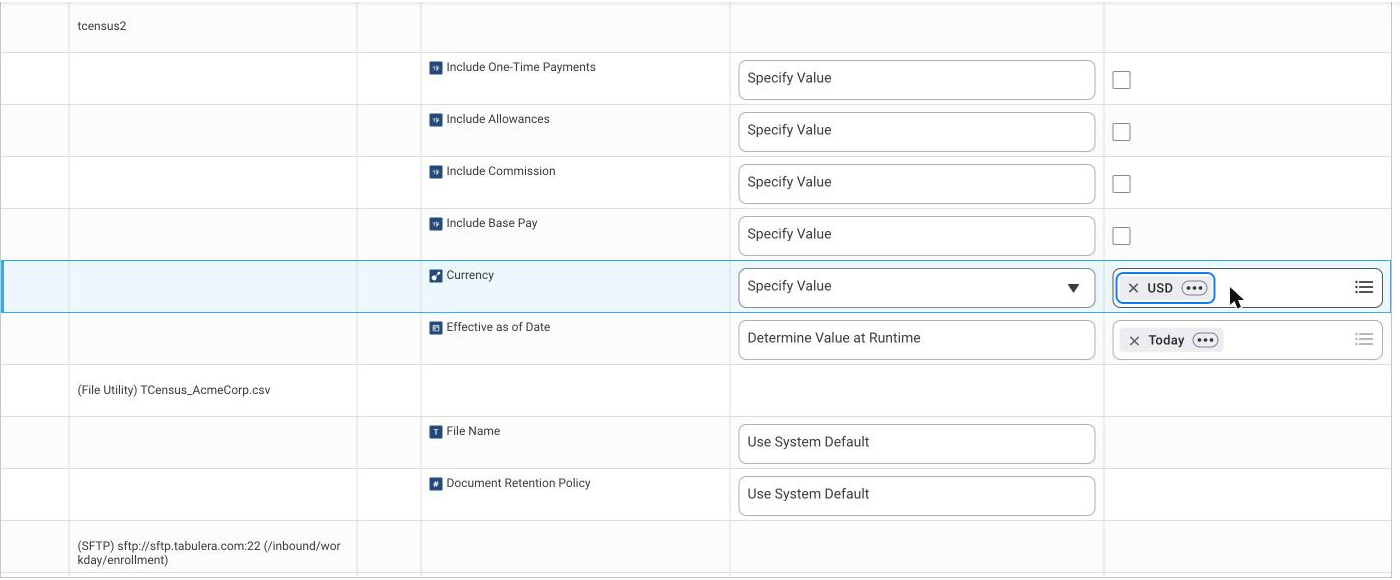
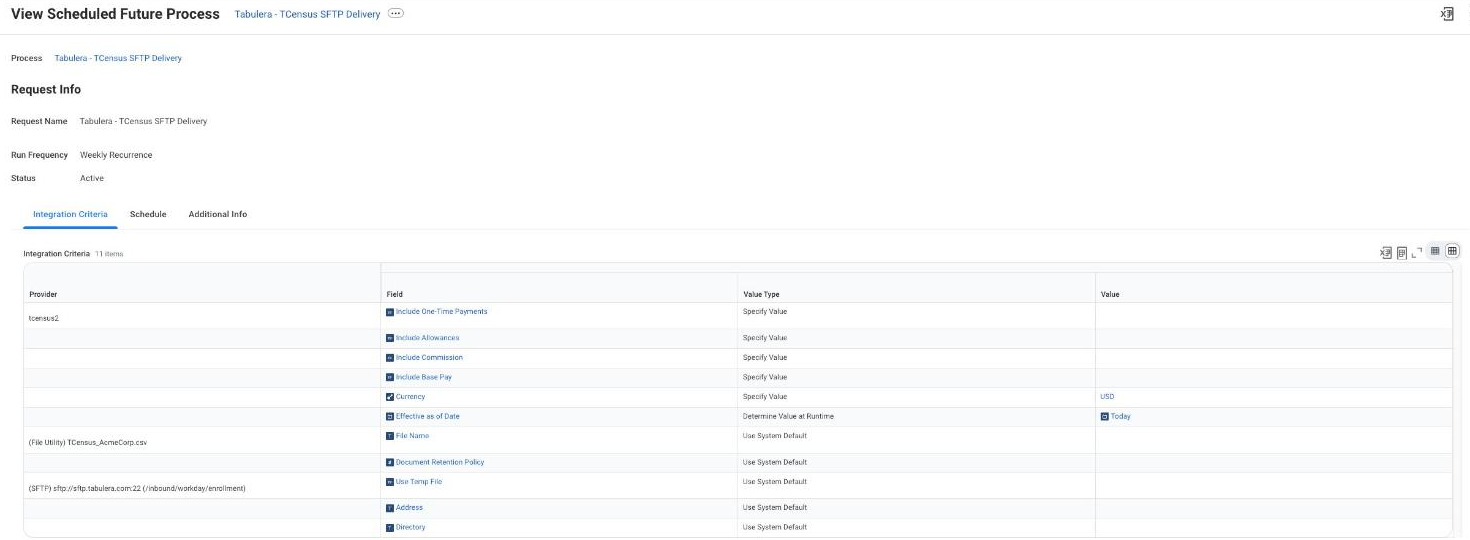
The tab lists the report prompts plus the file and SFTP parameters. File and SFTP rows can stay on Use System Default. For a recurring job the effective date must not be fixed, otherwise every run returns the same snapshot:
Prompt
Value Type
Value
Effective as of Date
Determine Value at Runtime
Today
Currency
Specify Value
USD
File Name / Directory / Address
Use System Default
[[Note]]If Tabulera has asked you to snapshot the first of the month rather than the run date, pick a "first day of current month" calculated field instead of Today.[[/Note]]
Step 9: Schedule
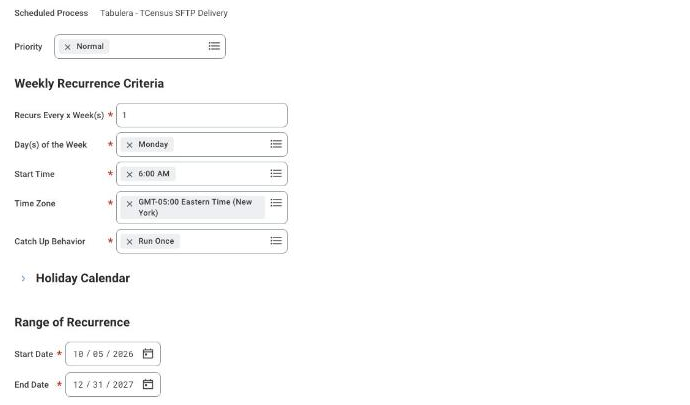
Monday at 6:00 AM gives Tabulera a fresh snapshot at the start of each working week.
Field
Value
Recurs Every x Week(s)
1
Day(s) of the Week
Monday
Start Time
6:00 AM (tenant time zone)
Catch Up Behavior
Run Once
Range of Recurrence: Start Date
First delivery day
Range of Recurrence: End Date
12/31 of next calendar year
[[Warning]]Workday rejects a schedule that runs more than five times after the end of the next calendar year. Set the end date to December 31 of next year and extend it each fall.[[/Warning]]
Click OK. The confirmation page shows the request with Status Active.
Test and Monitor
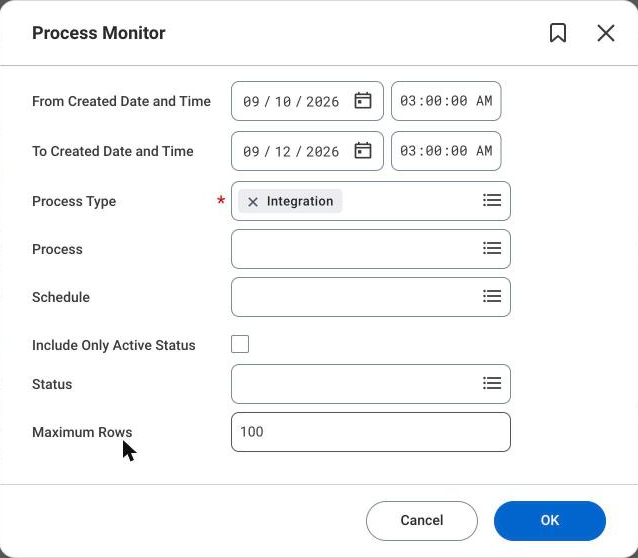
Before the first scheduled run, choose Integration > Test Transport from the same related actions menu to confirm Workday can log in to the SFTP server. After the first run, open Process Monitor, filter Process Type to Integration and confirm the request completed. Tabulera Support can confirm receipt on their side; the file then appears under the Sources menu for the matching billing period.
The cadence is not locked in. Open Scheduled Future Processes, find the EIB and use Change Schedule from its related actions to switch between daily, weekly and monthly, or Run Now for an ad-hoc delivery before a billing close.
Repeat for the Payroll Report
Follow the prerequisite and Steps 1 to 9 again for TPayroll, changing only these values:
Field
TPayroll value
EIB Name
Tabulera - TPayroll SFTP Delivery
Custom Report
TPayroll
Directory
/inbound/workday/payroll
File Name
TPayroll_AcmeCorp.csv
Report prompts
Pay Group and Period prompts on Determine Value at Runtime where a suitable field exists; otherwise Specify Value and review annually
Troubleshooting
Symptom
What to check
Report not listed in the Custom Report prompt
Enable As Web Service is not ticked on the report’s Advanced tab
Test Transport fails with an authentication error
User ID or password typed incorrectly; passwords are case sensitive
Test Transport fails with a connection error
Address must include the sftp:// prefix and port 22
Process completes but the file is empty
Prompts resolved to a date with no data, or the running user lacks the data domains
Same data on every run
Effective date prompt is Specify Value. Change it to Determine Value at Runtime: Today
Schedule rejected on save
End date is more than five runs beyond the end of next year
File not visible in Tabulera Sources
Directory path differs from the one Tabulera issued. Contact Tabulera Support
Summary
With both EIBs scheduled, the enrollment and payroll reports land in Tabulera automatically at the cadence your reconciliation cycle needs. Nobody logs in to Workday to run or upload a file, the effective date moves with each run, and the frequency can be adjusted in one dialog whenever the client’s needs change.
Benefits Open Enrollment: Employer Guide and Checklist
A complete open enrollment guide for employers: when the open enrollment period runs, key dates and deadlines, a step-by-step checklist, and tips that work.
Best HRIS Systems: Top 10 Picks by HR Teams in 2026
Discover the best HRIS systems in 2026. Compare the top 10 HRIS platforms, features, pricing, pros and cons, and find the best HRIS software for your HR team